DOCUMENTATION / Working with agents
Recurring tasks
Schedule daily or weekly work and get a fresh task to review on every run.
On this page
Recurring tasks save a brief and a schedule. Each run creates new work for review. It does not reuse the previous answer or automatically publish an accepted draft.
Schedule work in chat
Select your product and ask an agent for repeating work. Include the brief, frequency, local time, timezone, and weekday for weekly work:
Every Monday at 09:00 in Europe/London, review our last seven days of GA4 traffic. Summarize acquisition changes, top pages, and three actions for the week. Create a task for me to review.
Jak asks for missing timing details, then links the saved schedule. Open it to check its instructions and next run. Connect any needed tools to this product before the scheduled work starts.
Repeat an existing task
- Open the task you want to repeat.
- Choose Details → Schedule reruns.
- Set Repeat to
dailyorweekly. - For weekly work, choose the Weekday.
- Set Local time and an explicit Timezone, such as
Asia/Bangkok,Europe/London, orAmerica/New_York. - Choose Schedule reruns.
This repeats the saved brief and team plan, along with its model and thinking choices. The first run starts at the next scheduled time; saving the schedule does not run the task immediately.
Create a schedule directly
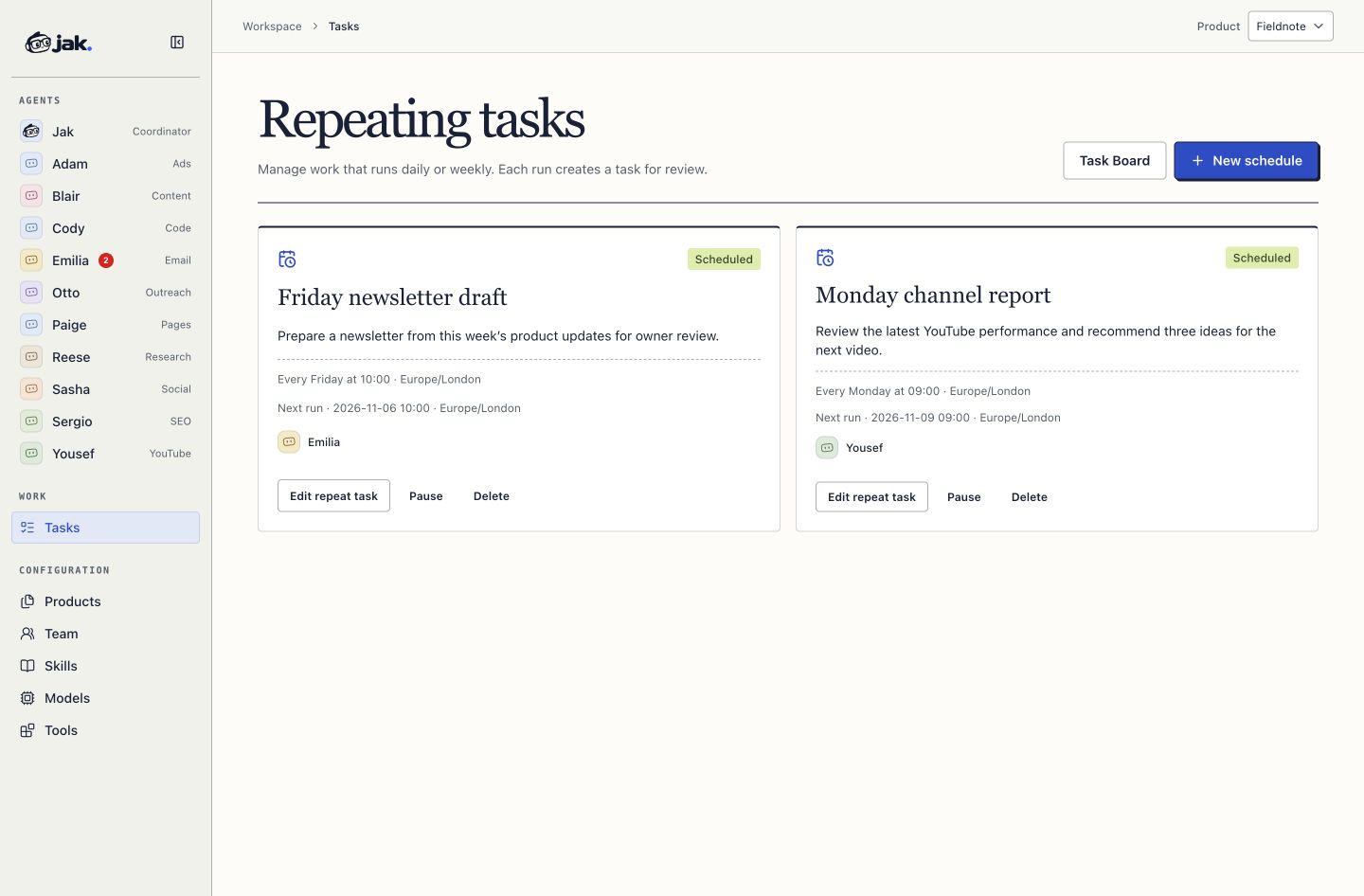
Open Tasks → Repeating tasks, select the product, then choose New schedule. Fill in Schedule name, Lead agent, frequency, weekday when needed, local time, timezone, and Instruction. Choose Save schedule.
Write the instruction so it makes sense each time it runs. Prefer “the last seven days” to fixed dates, and name the account or property if several are connected. Daily and weekly are the supported frequencies in the app’s scheduling forms.
Edit, pause, or delete
In Tasks → Repeating tasks, each card shows timing, the next run, and the last run and task status when available.
- Edit repeat task changes its name, brief, saved team instructions when present, and timing. Changes apply to future runs.
- Edit timing is shown when only timing can be changed from that card or task.
- Pause stops future scheduled runs. Resume starts scheduling again.
- Delete stops future runs and removes the schedule. Tasks already created stay on the board.
Archiving a product pauses its schedules. If an agent or source task is no longer available, check the schedule’s message. Restore an archived agent or create a replacement schedule when the original source can no longer be used.
Keep Jak running
The Jak process must be running for scheduled work to start. A laptop that is asleep or a stopped server cannot run the schedule at its due time. Use an always-on installation for unattended routines.
After downtime, missed occurrences become one catch-up task, rather than one task for every missed day. Scheduling then continues from the next occurrence.
Timing follows the named timezone. For daylight-saving changes, a repeated local hour runs once; a skipped clock time moves to a valid later local time.
Review every run
Each run appears as a new task on the board. The lead also posts the finished output in its product chat, and unread results show a sidebar badge. Accept the work, request changes, or use a separate approved export just as you would for a one-off task.